
Steam Link
Valve CorporationEntertainment
3.33.59K Reviews
- Version
- 1.3.32
- Installs
- 10.00M
- Age Rating
- Everyone
Screenshots



Our Review of Steam Link
 Analysis by Appyee
I use Steam Link when my computer is the place where the game lives but my preferred screen is somewhere else. The basic idea is simple: the app lets me bring my Steam library to a compatible mobile device or another supported screen, while the computer handles the actual game. That makes it less like a separate gaming service and more like a remote doorway into the PC I already own.
That distinction matters. I am not downloading a second copy of every game to my phone, and I am not replacing Steam with a new storefront. I am extending a Steam setup into another room. In my experience, that makes Valve Corporation’s entertainment app most useful for people who already have a computer with a Steam library and want more flexibility about where they play.
It is free, available for Everyone, and supports devices running Android 5.0 or later. The app was released on May 17, 2018, and its current version is 1.3.32. Those details make it approachable for a wide range of devices, although the age of a phone or tablet alone does not guarantee a smooth experience. The quality of the session depends heavily on the computer, network, controller, and game involved.
From a PC library to a comfortable second screen
I like how this section frames Steam Link as a way to change where I play, not as a replacement for the computer or its library. That distinction also makes it easier to judge whether the extra setup is worthwhile: the next thing I’d consider is how quickly and comfortably a game responds once it reaches the second screen.
Starting with the right expectation
The first question I would ask before installing it is not “Can my phone run this game?” It is “Can my home setup deliver the game from my computer to the device without getting in the way?” The phone or tablet displays the streamed image and sends controls back. The computer remains central to the process.
That means Steam Link makes sense in a few very specific situations. I might want to play a controller-friendly game on the sofa instead of at my desk. I might have a laptop or tablet that is easier to position than my desktop monitor. I might also want to use a larger television while keeping the computer in another room. In each case, the app solves a location problem rather than a hardware-power problem.
It is less appealing if I want a completely independent mobile gaming experience. Someone looking for games that install and run directly on a phone may be better served by the regular mobile app stores. Likewise, a person without a usable Steam library or a computer that can run the desired games has little reason to choose this app.
Preparing the computer and the receiving device
My workflow begins with the computer that contains the Steam library. I make sure Steam is installed, signed in, and available before opening the mobile app. This sounds obvious, but it prevents a common misunderstanding: the app cannot turn an unavailable computer into a cloud gaming machine. The host has to be ready to provide the session.
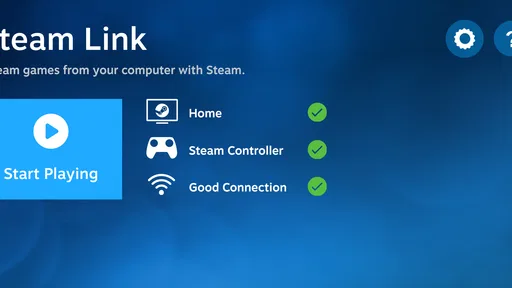
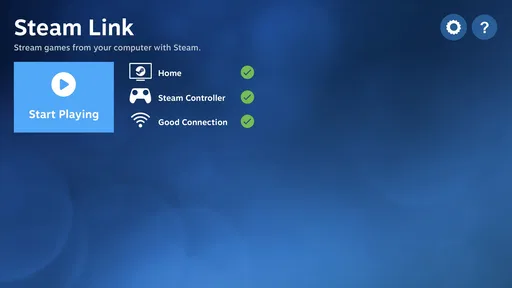
Next, I install Steam Link on the Android device and follow its connection process. The important handoff happens here: the mobile device needs to discover and pair with the computer. I treat this as a local-network task, so I prefer a stable home connection and avoid judging the app from a first attempt made on an unreliable network.
A controller is usually the better choice for games designed around one. Touch input can be useful for navigating menus or handling simple titles, but it is not a universal substitute for physical controls. This is one of the first practical trade-offs: the app may be free, yet a comfortable setup can still depend on hardware I already own or decide to add.
Before launching anything demanding, I check the basic path from input to result. Can I move through the Steam interface? Does the computer respond promptly? Is the image readable on the receiving screen? Does the controller remain connected? Testing these small steps first is more useful than immediately opening the longest game in the library.
Choosing the game and beginning the session
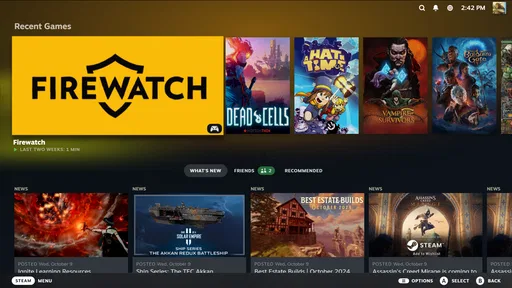
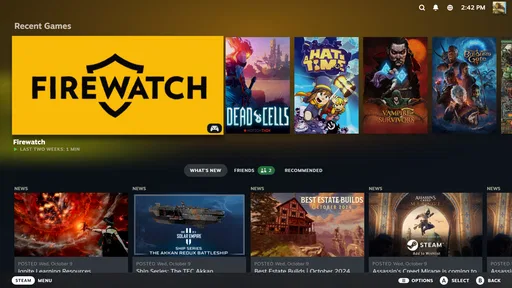
Once the connection is working, I browse the Steam library through the streamed interface and choose a title. This is where Steam Link feels different from a normal entertainment app. The library is not a catalog of mobile downloads. It is my existing PC collection presented remotely.
I find the strongest results with games that already work well from a controller and do not require constant access to tiny desktop buttons. Platformers, racing games, action titles, turn-based games, and many single-player experiences can fit naturally into this workflow. A strategy game with dense menus or a competitive game that depends on precise mouse movement may feel much less comfortable.
For a realistic evening scenario, I might finish work at my desk, leave the computer running in the office, and move to a television with a controller. I open the app, connect to the computer, select a suitable game, and continue without moving the desktop tower. The outcome is convenient because the game, saved progress, and main installation remain where they were. I am changing the screen and seating position, not rebuilding my library.
Managing the handoff between screens and controls
The most important handoff is between the computer and the mobile device. The computer renders the game, the network carries the video and audio, and the device sends my controls back. Each part can introduce friction. A powerful computer cannot fully compensate for a poor connection, while a strong network cannot make an unsuitable game pleasant to control.
I also pay attention to who is using the computer. Steam Link is not magic parallel access. If another person needs the host computer for a separate task, my remote session may no longer be practical. The app is best treated as a way to relocate my current Steam experience, not as a way to share one computer independently between several people.
Another useful habit is to separate navigation problems from game problems. If the Steam interface responds well but a particular game feels awkward, the app may be doing its job while the title itself is a poor match for remote play. Conversely, if every menu action feels delayed, changing games will not solve the underlying connection issue.
I also avoid assuming that a larger display automatically improves everything. A television can make the session more comfortable, but streamed text may be harder to read from a distance. On a phone, the image may be sharp enough while the controls occupy too much of the screen. On a tablet, the balance can be better, but the device still needs a convenient stand or grip for longer sessions.
What the finished experience feels like
When the pieces line up, the result is surprisingly practical. I can use the computer’s Steam library from a different seat without carrying the computer there. The app removes the need to install the same game on every screen and gives me a straightforward bridge between a desktop setup and a more relaxed playing position.
This is where the large user base becomes understandable. Steam Link has passed ten million installs, carries an average rating of 3.3 from around fifty-three thousand ratings, and has roughly three thousand six hundred written reviews. Those figures suggest an app that is widely used but not universally effortless. I read that combination as a warning to keep expectations realistic: the concept is valuable, while the quality of each session depends on the environment.
The strongest outcome is not maximum visual quality or a replacement for a dedicated gaming computer. It is convenience. I can leave the heavy work to the PC and use a lighter device as the viewing and control point. For short sessions, casual play, or games that suit a controller, that change can be more valuable than buying another copy of a game.
Where the workflow breaks down
The main weakness is that Steam Link exposes every weak point in the route between the computer and the screen. A congested or unstable home network can lead to delay, image interruptions, or controls that feel disconnected from what I see. Even when the game remains playable, small timing problems can make fast action feel uncomfortable.
This is why I would not choose it for every genre. Competitive games, rhythm-focused titles, precision platforming, and anything where a fraction of a second matters can suffer more noticeably than slower single-player games. A mouse-and-keyboard title may also require compromises if I am trying to play from a controller or a touch interface.
Touch controls are another point where expectations need care. They can help with basic interaction, but they do not automatically reproduce the comfort or accuracy of a physical controller. If I plan to use the app regularly, I think about the control method before blaming the streaming experience. A game that feels poor with touch may feel perfectly reasonable with a controller, while another game may remain awkward regardless.
There is also a practical dependency on the host computer. It needs to be available, signed in, and capable of running the game. If it is asleep, occupied, disconnected, or struggling with the title, the mobile app cannot independently fix that. This makes Steam Link less convenient than a native mobile game for spontaneous play away from home.
It is also not the same as cloud gaming. With cloud gaming, the provider supplies the remote computer. Here, my own computer is the source. That can be an advantage because I use the library and hardware I already have, but it also means I carry responsibility for the host, the network, and the controller setup.
Small habits that make the setup more dependable
I get better results when I choose the game before moving away from the desk and confirm that its control scheme suits the destination screen. This avoids discovering from the sofa that the title depends on keyboard shortcuts I cannot comfortably reproduce. It also helps me reserve remote sessions for games that benefit from the change of location.
I keep the first test short and deliberate. I check a menu, load a save, move around, and try the controls before committing to a long session. That simple routine tells me whether the problem is connection stability, display readability, or input comfort. It is a more useful diagnostic than relying on the app’s first successful connection.
For a shared household, I also plan around the computer’s availability. If the host is in use, I do not treat the app as a separate console. I choose a time when the computer can remain dedicated to the session. This prevents a frustrating handoff in which someone else needs the same machine just as I start playing.
Finally, I match the device to the game rather than assuming one setup fits everything. A phone can be convenient for quick checks or simple titles, a tablet can offer more comfortable viewing, and a television can create a living-room experience. Each choice changes how readable the interface and manageable the controls feel.
How it compares with the usual alternatives
Compared with installing a native mobile game, Steam Link offers access to the PC library instead of a separate mobile version. That is its biggest advantage, especially when I already own games that have no equivalent mobile release. The trade-off is that the computer and network remain part of every session.
Compared with sitting at the computer, it provides comfort and location flexibility but can introduce streaming delay and less convenient controls. The desk remains the safer choice for titles that demand a mouse, keyboard, high precision, or a consistently direct response.
Compared with cloud gaming, it avoids depending on a remote provider’s catalog because my own Steam collection is the starting point. On the other hand, I do not get the convenience of a provider-managed host. I must keep my computer ready and accept that the home connection determines much of the experience.
Compared with a dedicated console, the app can make a PC library feel more console-like in another room, but it does not remove the PC’s role. A console is generally designed around a single living-room workflow, while Steam Link is a flexible bridge for people who already have a computer-based setup.
Who should use it and who should skip it
I recommend Steam Link to PC players who want to move suitable games away from their desk without buying another copy. It is especially appealing for single-player sessions, controller-friendly libraries, and households where the computer is in one room but the comfortable screen is in another.
I would be more cautious if the main goal is competitive play, uninterrupted travel gaming, or independent use without access to the host computer. People who mostly play keyboard-heavy titles may also find the handoff more trouble than it is worth. In those cases, playing directly at the PC, using a native mobile version, or choosing a different gaming arrangement may be the better answer.
The age rating of Everyone makes the app broadly approachable, but that does not mean every game reached through it is suitable for every player. The app is a gateway to a Steam library, so the content experience depends on the games being accessed. I would still choose titles with the intended player and setting in mind.
My final take after following the whole route
Steam Link succeeds when I view it as a practical extension of a Steam computer rather than a standalone game platform. The flow from host computer to mobile device can be smooth: prepare the PC, pair the devices, connect a suitable controller, select a compatible game, and settle into a different room. When that chain works, the app gives an existing library a useful second life.
Its limitations are equally clear. The host must be ready, the network must behave, and the game must tolerate the chosen controls and display. Those conditions make it less universal than its short description might suggest, but they do not undermine its value for the right setup.
My recommendation is straightforward: if you already use Steam and want to play selected PC games from a sofa, tablet, or phone, it is worth trying because the app itself is free. Start with a controller-friendly title and a short test session, then judge the complete route rather than the app in isolation. The best reason to install it is not that it replaces your PC; it is that it lets your PC library follow you to a more comfortable screen.
Verdict
Strengths of Steam Link
- Streams your Steam library to phones, tablets, and supported TVs.
- Supports Bluetooth and USB controllers for comfortable gameplay.
- Free to download with no additional subscription fee.
- Offers customizable touch controls for games without controller support.
- Works well on fast 5 GHz Wi-Fi networks with low local latency.
Limitations of Steam Link
- Requires a computer running Steam while you play remotely.
- Performance depends heavily on network speed, stability, and router quality.
- Touchscreen controls are awkward for many complex PC games.
- Video quality can drop noticeably when the connection becomes unstable.
- Some games and launchers may not work correctly through remote streaming.
Other Releases by Valve Corporation
View All
Steam
Entertainment3.2
Similar Picks in This Category
View All
Google Play Games
Google LLC3.9

Netflix
Netflix, Inc.4.8

YouTube Kids
Google LLC4.2

Disney+
Disney4.4

Prime Video
Amazon Mobile LLC4.7
Steam
Valve Corporation3.2
Frequently Asked Questions
What is Steam Link and how does it work?
Steam Link lets you stream games from a computer running Steam to a compatible Android or iOS device, smart TV, or other supported screen. The game is processed on your PC, while the app sends video and audio to your device and returns your controller or touch inputs. You must leave the computer powered on and connected to your Steam account during play.
What devices and controllers are compatible with Steam Link?
Steam Link works with many Android phones and tablets, iPhones and iPads, Android TV devices, selected smart TVs, and other supported platforms. A Bluetooth, USB, or compatible wireless controller usually provides the best experience, although some games offer touch controls. Compatibility can vary by operating system and device, so checking the current store listing is recommended before downloading.
What internet connection do I need for Steam Link?
Steam Link performs best when the host computer and streaming device are connected to the same local network, preferably through Ethernet or a strong 5 GHz Wi-Fi connection. A weak or congested network can cause input delay, blurry video, stuttering, or disconnections. Remote play over the internet is also possible, but it depends heavily on upload speed, latency, router settings, and overall network stability.
Can I play every Steam game through Steam Link?
Most games in your Steam library can be launched through Steam Link, but the experience is not identical for every title. Games that depend on precise mouse control, unsupported launchers, anti-cheat systems, virtual reality equipment, or unusual input methods may require extra setup or may not work properly. Before starting, make sure the game is installed on the host PC and that Steam is running.
Is Steam Link free, and are there any additional costs?
Steam Link is generally available as a free application, and Valve does not charge a separate streaming fee for using it. However, you still need a Steam account, a computer capable of running the games, and the games themselves. Optional expenses may include a compatible controller, a better router, mobile data charges when playing remotely, or accessories that improve comfort and connection quality.
